
Common Causes of Microphone Malfunctions
Hardware Issues
Unexpectedly, the silence that ensues when a microphone is not working can feel deafening—an echo of frustration that resonates beyond the technical. Often, hardware issues lie at the core of this disruption. Loose connections, damaged cables, or faulty ports can sabotage even the most advanced equipment. Sometimes, the problem is as simple as dust or debris obstructing the microphone’s internal components, disrupting the delicate circuitry that captures sound.
In many cases, the root cause is a hardware malfunction that requires a keen eye and attentive inspection. For example, a worn-out microphone cable can intermittently cut out, or a damaged port can prevent the microphone from transmitting sound altogether.
- Physical damage to the microphone capsule
- Broken internal wiring or solder joints
- Corrosion or dirt buildup affecting contact points
These issues often go unnoticed until they manifest as persistent silence or distorted audio. When troubleshooting, understanding that hardware deterioration is a common culprit for a microphone not working can save valuable time and prevent unnecessary frustration.
Software and Settings Problems
Sometimes, the silence isn’t due to hardware but a sneaky software glitch. When your microphone is not working, it might be because of misconfigured settings or conflicting applications that hijack audio controls. These issues often creep in after system updates or new software installations, turning a straightforward problem into a digital labyrinth.
Among the common causes are incorrect input device selections or muted volume levels—simple oversights with big consequences. Windows or macOS sometimes default to different microphones, especially if multiple devices are connected. In such cases, navigating to your sound settings can reveal the culprit—an unselected or disabled microphone.
- Incorrect audio input device selection
- Muted microphone or low volume settings
- Conflicting audio applications running in the background
One often overlooked factor is driver issues. Outdated or corrupt audio drivers can cause the microphone to become ghost-like—silent and unresponsive. Updating or reinstalling drivers can sometimes resurrect a seemingly dead microphone, restoring clarity and voice to your digital conversations. When the microphone is not working despite hardware checks, software and settings are frequently the unseen culprits lurking in the shadows.
Connectivity and Compatibility
Connectivity and compatibility issues often lurk beneath the surface when the microphone is not working. In a world where devices multiply and evolve at a rapid pace, incompatibility can silently sabotage your efforts. Sometimes, a simple USB microphone may not be recognized by your computer due to outdated drivers or conflicting software.
Additionally, incompatible operating systems or hardware can create a discord that prevents your microphone from functioning correctly. For instance, plugging a professional-grade microphone into an older laptop or a device lacking the necessary drivers can result in silence, no matter how much you test it.
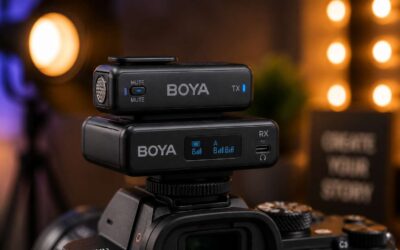
To deepen the complexity, consider the connection type. A loose or damaged cable—be it USB, 3.5mm jack, or Bluetooth—can cause intermittent or total failure. Often, troubleshooting these issues requires patience and a willingness to explore every connection avenue, knowing that compatibility is not just technical but deeply intertwined with the human desire for clear, authentic communication.
Troubleshooting Hardware-Related Problems
Checking Physical Connections
A staggering 60% of microphone issues stem from loose or faulty physical connections. When your microphone is not working, it’s essential to start with a thorough check of all hardware connections. Sometimes, a simple unplug and replug can restore the signal that gets lost along the way.
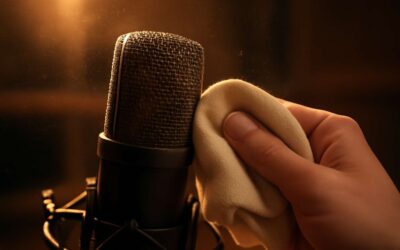
Begin by inspecting the cable for visible damage or kinks—these can interrupt the flow of sound. Ensure the microphone is securely connected to the port, whether it’s a USB or jack input. Dust or debris in the connection points can also cause problems, so wipe them clean with a soft cloth.
If you’re using an extension cable or adapter, verify that these components are functioning correctly. Sometimes, the issue isn’t with the microphone itself but with the connection path.
Remember, examining physical connections is the first step—don’t overlook loose plugs or damaged cables. These simple checks can often resolve the mystery of why the microphone is not working.
Inspecting Microphone for Damage
When your microphone is not working, the culprit could be a sneaky bit of damage lurking unnoticed. Microphones are surprisingly delicate, and even a tiny crack or bend can turn your crystal-clear sound into a garbled mess or complete silence. It’s worth inspecting your microphone for visible damage—cracks, dents, or bent parts can all be red flags. Sometimes, a humble drop or knock can compromise internal components, leading to inconsistent performance.
To get to the bottom of the issue, consider conducting a quick visual check. Look for corrosion or bent connectors, which can interrupt the delicate electrical flow. If your microphone is part of a more elaborate setup, like a condenser mic with an internal capsule, damage here is less obvious but equally damaging. In such cases, professional assessment might be necessary, but don’t discount simple damage—sometimes, it’s just a matter of replacing a worn-out cable or connector.
Remember: a damaged microphone isn’t always obvious at first glance. Sometimes, the problem lies in tiny fractures or internal dislodgement that only a careful inspection can reveal. Recognizing these signs early can save hours of frustration and help restore your audio clarity faster than you can say “mute button.”
Replacing Faulty Components
When your microphone is not working despite all the usual checks, the culprit may be hidden within the very essence of its hardware—faulty components that need replacing. Over time, even the sturdiest microphones can suffer from wear and tear, especially in the unpredictable climate of South Africa where dust and humidity can accelerate deterioration. Identifying these issues requires a keen eye and a touch of patience.
If you suspect a hardware fault, carefully examine internal parts for signs of corrosion, broken solder joints, or loose connections. Sometimes, a simple component like a capacitor or resistor can be the silent saboteur. Replacing these damaged elements can breathe new life into your microphone, restoring clarity and performance. In more complex cases, it might be necessary to consult a professional who can meticulously swap out faulty parts, ensuring your audio setup remains robust and reliable.
Resolving Software and Configuration Issues
Adjusting Sound Settings
In the labyrinth of digital communication, a seemingly minor glitch—such as the microphone is not working—can ripple into a cascade of frustration. Often, the culprit resides within the nuanced realm of software and configuration settings, where a misaligned input device or conflicting permissions can silently sabotage your audio fidelity. It’s a phenomenon that sneaks past hardware checks, lurking in the shadows of system intricacies, demanding a meticulous approach to resolution.
Adjusting sound settings becomes an art form—an act of finesse—where navigating through the control panel or sound preferences reveals hidden misconfigurations. Sometimes, the microphone is not working because it’s been muted or disabled within the operating system or the application itself. Ensuring that the correct device is selected as default, and that all volume levels are appropriately calibrated, can often restore harmony to your audio setup.
Consider the complex ballet of software permissions; in Windows or macOS, permissions can unexpectedly block access, rendering your microphone silent despite all hardware checks. Verifying these settings—allowing applications to access the microphone and granting necessary privileges—can unlock the pathway for your device to perform as intended. This layered approach is essential for those who seek not just sound but clarity in communication.
Updating and Reinstalling Drivers
When the microphone is not working despite all apparent hardware checks, the root often lies within the labyrinth of software and driver conflicts. Over time, drivers can become corrupted or outdated, silently sabotaging your audio experience. Updating and reinstalling these drivers is a crucial step that often escapes casual troubleshooting but can breathe new life into a malfunctioning microphone.
To begin, access your device manager or system preferences—an intricate dance that reveals hidden software layers. Carefully identify your microphone or audio device, and then opt for the latest driver version from the manufacturer’s website or trusted sources. Sometimes, simply reinstalling the driver—removing the old one and installing a fresh copy—resolves persistent issues. This process ensures compatibility, addresses bugs, and eliminates corrupted files that may cause the microphone to not work.
- Download the latest driver update from the hardware manufacturer’s official site.
- Uninstall the current driver through device manager or system preferences.
- Restart your system to clear residual conflicts.
- Install the updated driver and reboot again to cement the changes.
In some instances, the problem persists because the driver installation was incomplete or incompatible with your operating system. Reinstalling with a clean slate often reveals whether the issue stems from software discrepancies rather than hardware failure. This layered approach—updating or reinstalling drivers—can be the decisive factor in resolving the nagging problem of the microphone is not working, restoring clarity when it matters most.
Checking Privacy Settings
When your microphone is not working despite all physical connections seeming flawless, the culprits often hide in the subtle nuances of software and privacy configurations. It’s easy to overlook these behind-the-scenes barriers that can silently mute your voice, especially in a digital landscape where privacy settings are increasingly strict. Checking your privacy settings might seem mundane but can unlock critical access to your microphone, restoring your ability to communicate seamlessly.
Begin by navigating through your device’s privacy or security settings—these are the gates that control app and system access to your microphone. Ensure that the relevant apps or services have permission to use your microphone. Sometimes, a simple toggle switch might be turned off, blocking your microphone from functioning properly. To streamline this process, consider the following steps:
- Open your device’s privacy menu.
- Locate the microphone access section.
- Verify that access is enabled for the applications you intend to use.
- Review any app-specific permissions, allowing access where necessary.
In South Africa, where digital communication is integral to business and personal life, these privacy settings can be the difference between a clear, professional call and a frustrating silence. Ensuring proper configuration can often resolve the nagging issue of the microphone is not working, allowing your voice to be heard loud and clear once more.
Addressing Connectivity and Compatibility Challenges
Bluetooth Microphones
When your microphone is not working, it often feels like your voice has been silenced by an invisible force. One sneaky culprit? Bluetooth microphone connectivity issues. These wireless marvels rely on a delicate dance of pairing, signal strength, and compatibility. Sometimes, your device simply refuses to recognize the microphone, leaving you in a digital limbo.
To tackle this, ensure your Bluetooth microphone is within range—think of it as giving your device a gentle nudge rather than a shove. Clearing previous pairings or resetting the connection can often do wonders. Additionally, it’s worth verifying that your device supports the Bluetooth version of your microphone; compatibility is king here.
If all else fails, a quick firmware update or a fresh pairing attempt often clears the way for seamless audio transmission. Remember, sometimes your microphone is not working because it’s just not talking the same language as your device!
USB Microphones
In the vibrant tapestry of modern communication, a microphone that refuses to work can feel like a sudden hush in a bustling marketplace. When your microphone is not working, it’s often a whisper of compatibility or connectivity issues lurking beneath the surface. USB microphones, celebrated for their plug-and-play simplicity, can sometimes become silent sentinels due to unseen conflicts or outdated firmware.
Addressing these challenges involves a careful dance with your device’s settings and connections. Ensuring your USB port is functioning properly and that the microphone is recognized by your operating system is a crucial first step. Sometimes, a simple restart or a fresh connection can work wonders. If your microphone is not working despite these efforts, verifying that your device’s drivers are up-to-date can illuminate the path forward.
For seamless integration, consider the following:
- Check that your USB cable is intact and free from damage.
- Ensure your device supports the microphone’s specifications and power requirements.
- Test the microphone on another port or device to isolate the issue.
In the realm of digital audio, compatibility and connection are the twin stars guiding your way. When your microphone is not working, a gentle inspection of these facets often reveals the hidden cause, restoring harmony to your soundscape.
Audio Jack Microphones
In the vast realm of digital soundscapes, encountering a situation where your microphone is not working can feel like a sudden eclipse darkening the clarity of your voice. For those relying on audio jack microphones, the challenge often lies in the subtle dance between compatibility and connection. A seemingly innocuous issue, such as a loose port or a misaligned connector, can mute your microphone’s voice, leaving you stranded in silence.
To restore harmony, start by inspecting the physical connection—ensure your audio jack is securely plugged in and free from dust or debris. Sometimes, the simplest fix is to test the microphone on another device or port, confirming whether the problem persists across different setups. Remember, not all microphones are created equal; some require specific support from your device’s sound system or may need a compatibility boost through driver updates. When your microphone is not working, a thorough check of these elements can illuminate the root cause, reviving your sound with a touch of patience and precision.
Additional Tips and Best Practices
Regular Maintenance and Updates
Regular maintenance and updates are often the unsung heroes in resolving the perplexing issue of a microphone is not working. Over time, dust, dirt, and even subtle corrosion can accumulate in the ports and connectors, impairing sound transmission. A quick, thorough cleaning can restore clarity and functionality, preventing minor issues from escalating into complete failure.
Furthermore, keeping your device’s software and drivers up-to-date is essential. Manufacturers frequently release patches that address bugs or compatibility issues, which might be causing the microphone is not working problem. Staying current with updates ensures your system remains optimized and can seamlessly communicate with your microphone, especially when using newer hardware or operating systems.
For optimal performance, consider establishing a routine of periodic checks and maintenance. This proactive approach minimizes downtime and extends the lifespan of your equipment. Remember, a well-maintained microphone not only performs better but also preserves your professional image, whether you’re conducting virtual meetings or recording content. After all, consistent upkeep is the key to averting the frustration of a microphone is not working when you need it most.
Using Quality Equipment
Using high-quality equipment isn’t just about sound clarity; it’s about safeguarding your entire setup from elusive issues like the microphone is not working. Investing in reputable microphones, whether USB, audio jack, or Bluetooth, ensures reliability and reduces the risk of technical hiccups. When your gear is built with precision, it’s less prone to internal failures or connection problems that can make the microphone is not working unexpectedly.
Moreover, selecting the right accessories can be a game-changer. A sturdy microphone stand, quality cables, and weather-resistant covers can prevent physical damage and maintain optimal performance. Sometimes, the difference between a working microphone and one that isn’t is simply using the right, well-maintained equipment. Don’t underestimate the power of choosing premium gear—your recordings and virtual meetings will thank you!
Seeking Professional Help
Sometimes, even the most sophisticated setups stumble into silence, leaving you puzzled and frustrated. When the microphone is not working despite all efforts, seeking professional help can be a beacon of clarity. An expert can diagnose underlying issues that might escape the untrained eye—whether it’s an elusive internal fault or a subtle compatibility glitch. Their seasoned ears and tools can uncover problems buried beneath the surface, ensuring your voice is heard loud and clear once more.
In addition, don’t overlook the power of patience and methodical troubleshooting. Sometimes, a simple reset or a thorough clean of connection ports can work wonders. For those who feel out of depth, consulting a technician or an audio specialist isn’t just a luxury—it’s a wise investment in preserving the integrity of your audio environment. Remember, when the microphone is not working, a fresh perspective often turns silence into symphony.
0 Comments